

Installation guide
Koha Installation on Ubuntu 24.04 LTS — A Complete Step-by-Step Guide
Every command, from the community repository to a catalog that can lend a book — including the twelve steps most guides stop before.
Updated August 2026 · Tested against Koha 25.11 · Ubuntu 24.04 LTS
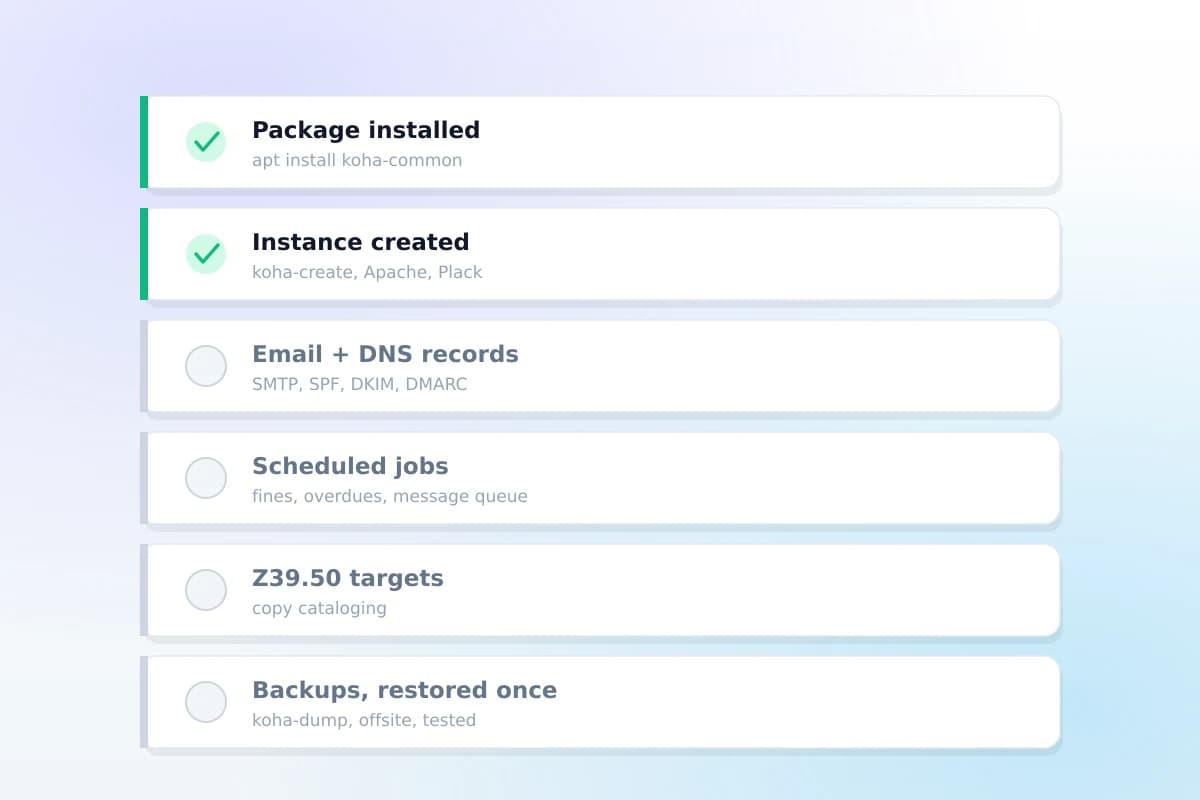
Installing the Koha package takes an afternoon. Opening a library takes longer, and the difference is everything below step 8 — the email records, the notice templates, the scheduled jobs and a backup you have actually restored. This guide covers both halves, in order, with the commands.
Before you start
Four things, and the last one is the one people redo Apache for.
- 1A server. Under about 20,000 items runs comfortably on 2 vCPU and 4 GB of RAM. A large or multi-branch library wants 4+ vCPU and 8–16 GB, more with Elasticsearch. Concurrent users decide this, not catalog size.
- 2A current Ubuntu LTS or Debian stable, with
sudo. - 3A UTF-8 locale. Koha requires one, and a mismatch produces character corruption in records that is miserable to unpick after cataloging has started.
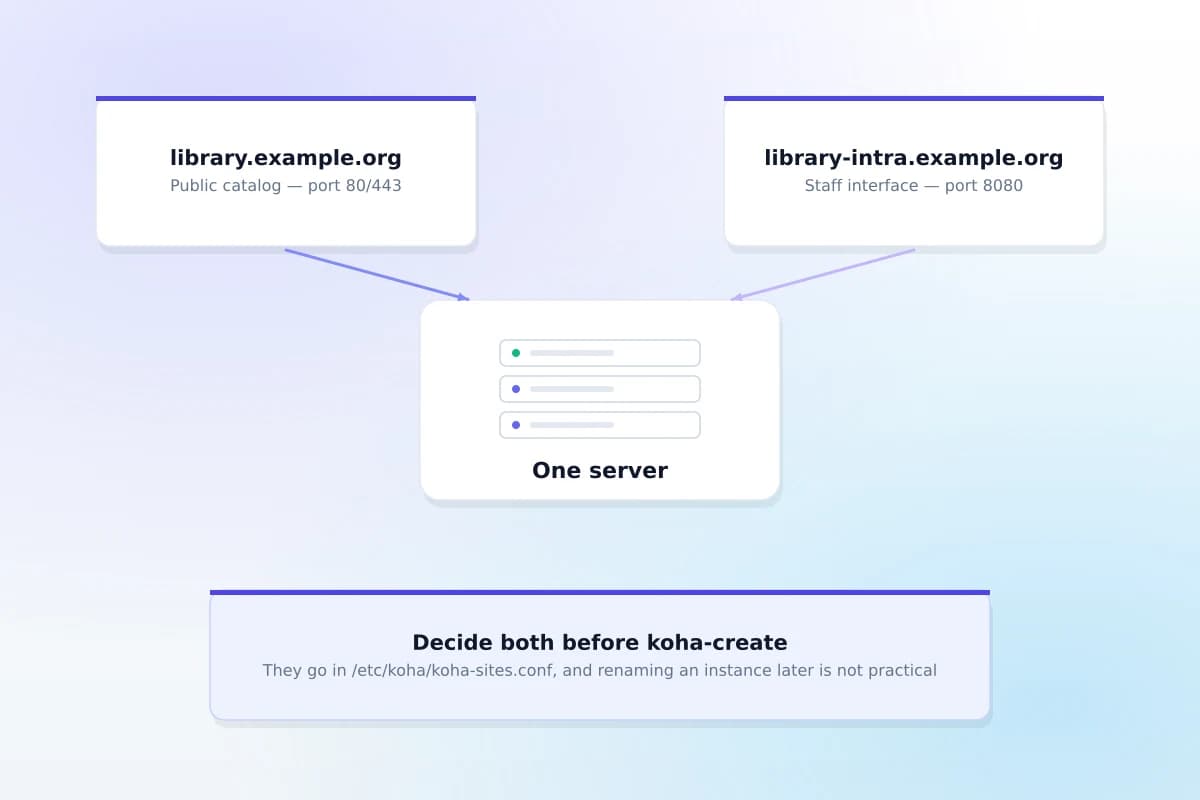
- 4Two hostnames, decided now — one for the public catalog, one for staff. They go into the config before the instance is created, and changing your mind afterwards means reconfiguring Apache.
Step 1Prepare the server
$ sudo apt update && sudo apt -y upgrade$ sudo apt -y install wget gnupg lsb-release apt-transport-https ca-certificates$ sudo timedatectl set-timezone Etc/UTCSet the timezone to your own — it decides when overdue notices are calculated and when the scheduled jobs run, so a wrong one is a support ticket six weeks later.
Step 2Add the Koha community repository
Use the community repository, not a distribution package — it is the one that is actually current.
$ wget -qO- https://debian.koha-community.org/koha/gpg.asc \ | sudo gpg --dearmor -o /usr/share/keyrings/koha-keyring.gpg$ echo "deb [signed-by=/usr/share/keyrings/koha-keyring.gpg] \https://debian.koha-community.org/koha stable main" \ | sudo tee /etc/apt/sources.list.d/koha.list$ sudo apt updatestable tracks the current stable series. Replace it with a release number (25.05) when a version has to be held.
Check this line before running it on a production box
Step 3Install the database server
$ sudo apt -y install mariadb-server$ sudo mysql_secure_installationDo not create a database or user by hand. koha-create makes its own in step 7, and a hand-made one is a mismatch waiting to happen.
Step 4Install Koha
$ sudo apt -y install koha-commonThis pulls in Apache, the Perl stack and the search indexer. It does not create a library yet — which is the step people believe they have already done.
You are on step 4 of 16
Everything from here to step 15 is already done on Koha Cloud — the server, HTTPS, Apache, the scheduled jobs, SMTP with its DNS records, Z39.50 targets and tested backups are configured before you log in.
See Koha CloudStep 5Configure koha-sites.conf
$ sudo nano /etc/koha/koha-sites.confThe file documents its own URL formula, and it is worth reading before editing:
OPAC: http://<OPACPREFIX><instance><OPACSUFFIX><DOMAIN>:<OPACPORT>STAFF: http://<INTRAPREFIX><instance><INTRASUFFIX><DOMAIN>:<INTRAPORT>Set DOMAIN to your own, INTRAPORT to 8080 and OPACPORT to 80. The shipped defaults include INTRASUFFIX="-intra", ZEBRA_MARC_FORMAT="marc21", ZEBRA_LANGUAGE="en" and memcached enabled.
Step 6Enable the Apache modules and port
$ sudo a2enmod rewrite cgi headers proxy_http$ grep -q '^Listen 8080' /etc/apache2/ports.conf \ || echo "Listen 8080" | sudo tee -a /etc/apache2/ports.conf$ sudo systemctl restart apache2The package ships its own Listen 8080, so the second command is usually a no-op — it is there because the one server where it is not is the one where the staff interface silently refuses to load.
Step 7Create the instance
$ sudo koha-create --create-db --marcflavor marc21 --zebralang en libraryThe flag is --marcflavor, US spelling
debian/scripts/koha-create in the Koha source. Several popular guides write --marcflavour, and it fails.MARC21 or UNIMARC is permanent
The instance name becomes database names, system users and file paths. Renaming it later is not practical, so pick something short and permanent — library rather than test2.
Flags worth knowing about now rather than later: --elasticsearch-server, --enable-sru, --letsencrypt, --smtp-host, --timezone and --defaultsql.
Step 8Enable the site and start Plack
$ sudo a2dissite 000-default$ sudo a2ensite library$ sudo koha-plack --enable library$ sudo koha-plack --start library$ sudo systemctl reload apache2Step 9Get the password and run the web installer
$ sudo koha-passwd libraryOpen the staff hostname on port 8080 and log in with that password. The installer then walks through schema creation and onboarding.
- 1Confirm the database connection and create the schema.
- 2Choose your MARC flavour — the same permanent choice as step 7.
- 3Create the library, then the superlibrarian account you will actually use.
- 4Add item types, patron categories and at least one circulation rule.
At this point Koha runs. It cannot yet send a notice, import a record from another catalog, charge a fine or survive a disk failure — which is what the rest of this guide is for.
Step 10HTTPS and the firewall
$ sudo apt -y install certbot python3-certbot-apache$ sudo certbot --apache -d library.example.org -d library-intra.example.org$ sudo ufw allow 80,443/tcp$ sudo ufw enableA staff login over plain HTTP is a credential leak. The staff interface also does not need to be reachable from the whole internet — restrict it to your institution's range if you can.
Step 11Scheduled jobs
The most-skipped step on this page and the most consequential. koha-common installs the schedule for you — including a job that processes the message queue for every enabled instance every fifteen minutes.
$ koha-list --enabled$ systemctl list-timers | grep -i koha$ ls /etc/cron.d/koha-common /etc/cron.daily/koha-commonNothing errors when these do not run
Step 12SMTP, so notices actually arrive
Koha 22.11 and later has Administration → SMTP servers in the staff interface; older versions edit koha-conf.xml. That is the easy half.
The half that gets marked done too early is DNS on your sending domain:
- 1SPF — which servers may send as your domain.
- 2DKIM — a signature proving the message was not altered.
- 3DMARC — what a receiver should do when the first two fail.
- 4A test to an address outside your institution — and check the spam folder, not just that Koha reported success.
Without those records, overdue notices land in spam and staff conclude the system is broken. It is the single most common Koha complaint and it is a DNS problem, not a Koha problem.
Step 13Add Z39.50 and SRU targets
Without these, every record is typed by hand. With them a cataloger searches remote catalogs and imports a matching record in seconds — the difference between a week of cataloging and an afternoon.
The work is finding targets that are actually up and getting each one's connection and attribute settings right. A target with slightly wrong settings returns nothing at all rather than an error, which makes it tedious to debug and easy to give up on.
Step 14Backups you have actually restored
$ sudo koha-dump library$ sudo koha-dump --exclude-indexes librarykoha-dump takes contents and configuration. --exclude-indexes produces a much smaller dump that is slower to restore, because Zebra has to rebuild.
A dump on the same server is not a backup
Step 15Verify everything is running
$ systemctl status apache2 mariadb$ sudo koha-plack --status library$ koha-list --enabledThen the checks a service restart cannot make for you: both URLs load over HTTPS, a test notice arrives at an external address, a Z39.50 search returns a record, and a checkout produces a due date.
Installing Koha on Windows
Koha is packaged for Debian and Ubuntu, and those packages are what the community supports. There is no supported native Windows installation.
You can run it under WSL2 or in a virtual machine, and that is genuinely fine for evaluating Koha on your own laptop. It is a poor idea for a library that depends on it: you inherit a second layer to patch and a backup story that is harder to test. If Windows is a hard institutional requirement, run Ubuntu on a small server instead — or use a hosted catalog and skip the question.
Troubleshooting
Seven failures that account for most of them.
| What you see | What it usually is |
|---|---|
| Locale errors during installation | No UTF-8 locale generated. Generate and set one, then re-run — and fix it before cataloging, because a wrong locale corrupts records in a way that is painful to unpick later. |
| Apache will not start after enabling the site | Almost always a port or ServerName collision with the default virtual host. Disable it with a2dissite 000-default. |
| Every staff page returns 404 | mod_rewrite is not enabled. a2enmod rewrite, then restart Apache. |
| The web installer cannot connect to the database | The password used is not the generated one for that instance. Read it with koha-passwd <instance> rather than guessing. |
| The OPAC loads blank or unstyled | The OPAC virtual host is serving the wrong document root, or Plack did not restart. koha-plack --restart <instance>. |
| Everything works until the server reboots | A service that was started by hand and never enabled. Check with systemctl is-enabled for each of apache2, mariadb and memcached. |
| Notices say “sent” but never arrive | Not a Koha fault. Either the message queue job is not running, or the sending domain has no SPF/DKIM/DMARC records and the receiving server is filing them as spam. |
Each of these has an article of its own, with the full diagnosis: koha-conf.xml cannot be located, the web installer 500s or times out, Apache will not start, apt cannot install koha-common, 502 after enabling Plack, and reading the error log that has the real message.
What “installed” does not mean
The package install is step 4 of 16. A library that can actually open needs the configuration, the email and its DNS records, the notice templates, the copy-cataloging targets, the scheduled jobs and a backup that has been restored at least once.
Or skip all sixteen steps
Everything on this page is already done on Koha Cloud
You bring your data. The server, the certificates, the scheduled jobs, the mail records, the targets and the backups are already configured and already monitored.
| On this page | On Koha Cloud |
|---|---|
| SMTP plus SPF, DKIM and DMARC on your domain | Configured and deliverability-tested before handover |
| Z39.50 and SRU targets, found and tuned one by one | Targets configured, with copy cataloging working on day one |
| Scheduled jobs you have to confirm are running | Run for you, with a per-library record of every run |
| A backup you set up, copy offsite and restore yourself | Automated, offsite, and you keep your own copy |
| Upgrades and security patches on your calendar | Ours — your team never logs into a server |
Want it on your server instead? Koha installation services.
FAQ
Questions people ask mid-install
How long does installing Koha actually take?
Two to four hours to get the package installed, an instance created and the web installer finished — assuming nothing unusual about the server. That is not the same as a library that can open. Email with its DNS records, notice templates, Z39.50 targets, the scheduled jobs and a backup you have actually restored are the rest of the work, and they are what turn a few hours into a few weeks. The steps on this page are ordered so you can see which part you are in.
Can I install Koha on Windows?
Not directly. Koha is packaged for Debian and Ubuntu, and the official packages are what the community supports. On Windows you run it inside WSL2 or a virtual machine, which is genuinely fine for evaluating Koha on your own laptop and a poor idea for a library that depends on it — you inherit a second layer to keep patched and a backup story that is harder to test. If Windows is a hard requirement, run Ubuntu on a small server or use a hosted catalog instead.
MARC21 or UNIMARC — and can I change my mind later?
No, you cannot change it later, which is why it is worth a minute now. MARC21 is the right answer for most of the world and is what most copy-cataloging targets return. UNIMARC is used in parts of Europe and elsewhere; choose it only if your existing records are already in it or a national requirement says so. The flag is set once when the instance is created and everything after that assumes it.
What server do I need?
A small library — under about 20,000 items — runs comfortably on 2 vCPU and 4 GB of RAM. A large or multi-branch one wants 4 or more vCPU and 8 to 16 GB, and more if you add Elasticsearch. Disk is rarely the constraint until you start storing cover images and uploads. The number that actually decides it is concurrent staff and OPAC users, not the size of the catalog.
My notices are not sending. Is Koha broken?
Almost never. Two things have to be true and only one of them is inside Koha: an SMTP server it can reach, and a sending domain with SPF, DKIM and DMARC records that let your mail be accepted. Miss the DNS half and Koha reports the message as sent while the receiving server files it as spam. Check the message queue is being processed by the scheduled job, then send a test to an address outside your institution and look in the spam folder — not just at Koha telling you it worked.
Do I really need the scheduled jobs?
Yes, and they are the most-skipped step on this page. Fines accrual, overdue notices, the message queue, the holds queue and automatic renewals are all scheduled jobs — none of them is triggered by anything a librarian clicks. Miss one and nothing errors; a number is simply always zero, and you find out months later when a patron asks why they were never charged.
Can I install it myself now and move to hosting later?
Yes, and it is a common path — install it, run it for a year, then decide. Koha holds your data in a standard database and exports MARC and CSV, so moving is a migration rather than a rebuild. Doing the install yourself first is also the cheapest way to find out how much of your week the server wants.
What if I get stuck halfway through?
Most people get stuck in the same four places: Apache serving the wrong thing, the database password, email that reports success and arrives nowhere, and Z39.50 targets that return nothing without erroring. Each has its own section on this page. If the server is meant to be live on a date and it is not moving, that is what our installation service is for — we can pick up a half-finished install rather than starting again.
Related reading
The decisions behind the commands
What it costs, what hosting involves, and which scheduled jobs matter.
What Koha installation costs
Self-hosting ranges in USD — hardware, hosting, the hours, and the parts people forget to budget for.
Read the guideKoha hosting, explained
What running the server involves month to month, so “you host it” is an informed choice.
Read the guideKoha cron jobs
Which scheduled jobs matter and what silently breaks without each one.
Read the guide