

Configuration & operations
How to add a library (branch) in Koha
Adding a branch to Koha takes one form, but the code you choose is permanent and a new library needs a calendar, circulation rules and staff before it can lend. Here is the form, every field that matters, and what to set up next.
By Babar Junaid
Published 2026-11-20 · Tested against Koha 26.05
To add a library (branch) in Koha, go to Administration → Libraries, click New library, enter a short Library code and a Name, and click Save. Choose the code carefully: it cannot be changed later. Then give the new library its calendar, circulation rules and staff, or it will not lend correctly.
| Step | Screen |
|---|---|
| Add the library | Administration → Libraries/cgi-bin/koha/admin/branches.pl |
| Set its holidays | Tools → Calendar/cgi-bin/koha/tools/holidays.pl |
| Give it lending rules | Administration → Circulation and fine rules/cgi-bin/koha/admin/smart-rules.pl |
| Group it with other branches | Administration → Library groups/cgi-bin/koha/admin/library_groups.pl |
| Work as that library | Circulation → Set library/cgi-bin/koha/circ/set-library.pl |
Step 1: Add the library
- 1Go to Administration and, under Basic parameters, click Libraries.
- 2Click New library.
- 3Enter the Library code and Name (both required), then the address and contact details.
- 4Set Pickup location and Public (both default to Yes), and click Save.
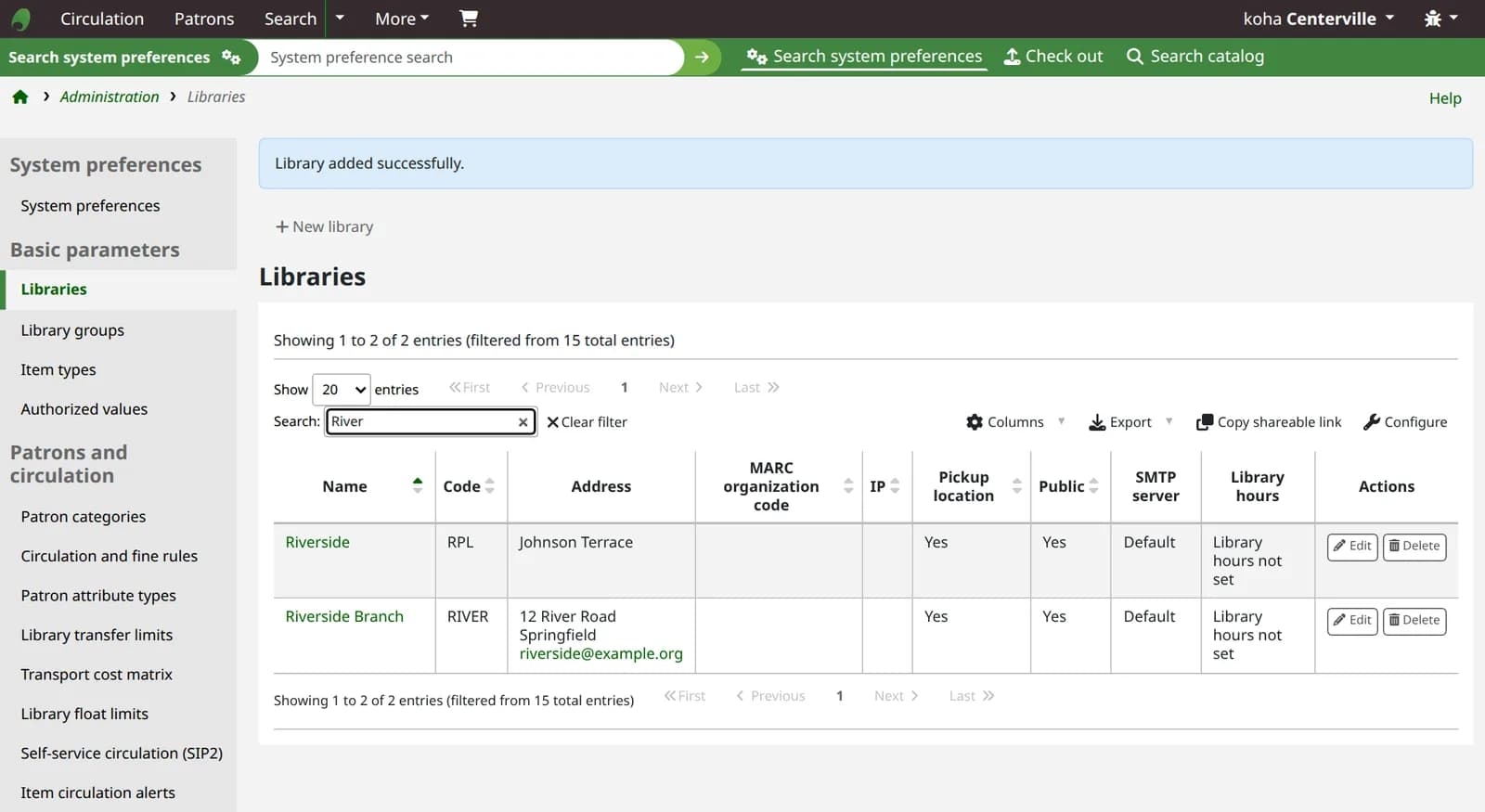
- 5Koha answers Library added successfully. and lists the library with its code.
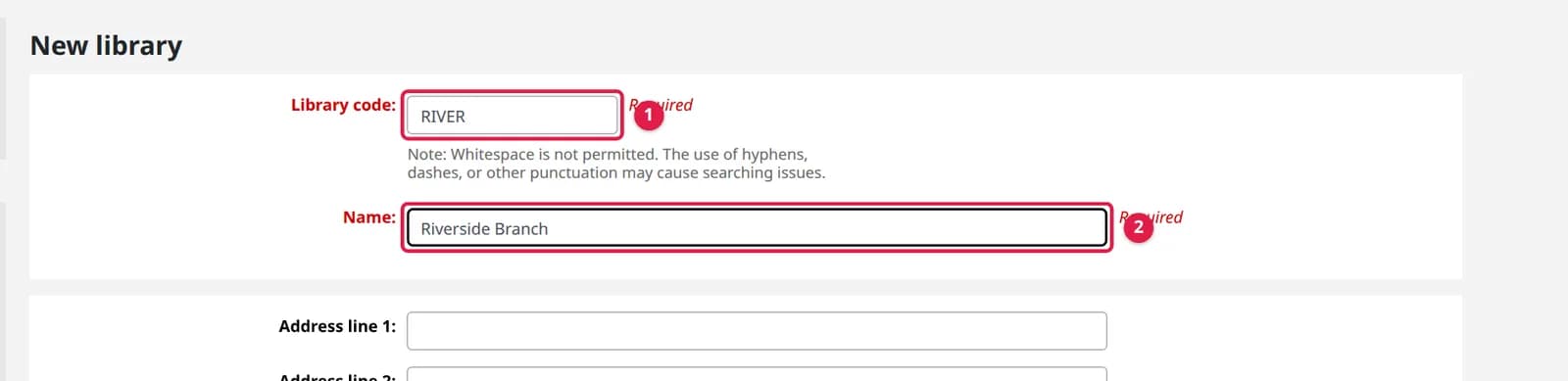
Choosing the library code
- Permanent. After saving, the code is shown as plain text on the edit form. Every item, patron, loan and rule refers to it, so a typo stays for good.
- Short and plain. Up to 10 characters, no spaces. Use capital letters and digits only (
MAIN,SCI,CITY2): Koha warns that hyphens and other punctuation can cause searching problems. - Meaningful to staff. The code appears in reports, exports and item records, where the full name often does not.
The fields that matter later
| Field | What it does |
|---|---|
Notices for this library's patrons are sent from this address. Left blank, Koha uses KohaAdminEmailAddress instead | |
| Reply-To | Where patrons' replies go; falls back to Email, then ReplytoDefault |
| SMTP server | Which mail server this library sends through; Default uses the server marked default (SMTP setup) |
| Pickup location | Yes lets patrons choose this library to collect holds |
| Public | Yes shows it to patrons in the OPAC; No suits an internal unit such as technical services |
| Library hours | Opening and closing time for each day |
| IP | One address or a range written as a prefix, such as 192.168.1.*. Leave it empty unless you mean it: StaffLoginLibraryBasedOnIP is on in a new install, so every staff login from that range lands in this library, whatever is chosen at login. With StaffLoginRestrictLibraryByIP on as well, staff can choose this library only from computers in the range |
| MARC organization code | The library's MARC code, filled into 003 by the cataloguing plugin for records catalogued here. Left blank, Koha uses the MARCOrgCode preference |
| Specific OPAC JS / Specific OPAC CSS | Extra JavaScript and CSS shown on the OPAC to patrons logged in from this library, added after the system-wide OPACUserJS and OPACUserCSS |
What Koha can say
| Koha shows | What it means |
|---|---|
| Library added successfully. | Done. It is now in every library list |
| An error occurred when adding this library. The branchcode might already exist. | That code is taken. Pick another: codes must be unique |
| The library code entered contains whitespace characters. Please remove any whitespace characters from the library code (a browser pop-up) | The code has a space in it. Nothing was saved |
| This library cannot be deleted. Patrons or items are still using it (422 patrons and 965 items). | Move those patrons and items to another library first (batch modification), then delete. The counts are your own |
| Library deleted successfully. | An unused library was removed after Are you sure you want to delete …? → Yes, delete |
| Error: StaffLoginRestrictLibraryByIP is switched on and you are logging in with an IP address that doesn't match your library. (at login) | The library has an IP set and this computer is outside it. Log in from that library's network, or clear the field. With the preference on, such a library is also left out of the login Library list |
Step 2: What to set up before it lends
- Calendar. In Tools → Calendar, choose the library under Define the holidays for and add its closed days, or use Copy holidays to from another branch. Due dates and fines skip closed days only if they are entered: setting up holidays.
- Circulation rules. Until you add rules for it, the new library uses Standard rules for all libraries. To give it its own loan periods, choose it under Select a library on the circulation rules page. Which library's rules apply at the desk is decided by
CircControl. - Staff. Set the home library on each staff member's account. Staff working there choose it at login or with Circulation → Set library.
- Notices. In Tools → Notices and slips, pick the library in the Library list to give it its own wording; otherwise it uses the version for all libraries.
- Groups and transfers. Add it to a Library group if you search or limit by groups, and to Library transfer limits if not every route is allowed: how transfers work.
Think twice before switching on IndependentBranches
IndependentBranches set to Yes, staff (other than superlibrarians) cannot change holds, items or patrons that belong to another library. It suits branches that run as separate libraries. Koha itself warns that changing it on a live system radically alters Koha's behaviour, so decide before the branches start lending.A branch, or a separate Koha?
Libraries in one Koha share one catalogue and one patron database: a patron registered at one branch can borrow at another, and a book can be held at one and picked up at another. That is right for the branches of one institution.
If two institutions want separate catalogues and patrons, branches are the wrong tool: each needs its own Koha instance, created on the server with koha-create. Choosing between the two is much easier before any data goes in than after.
Tested on live Koha 26.05.02
Passed all 23 checks · Read the run log
- Koha release
- 26.05.02
- System
- Debian 13 (trixie)
- Setup
- Official Koha test container (koha-common commands). A command that needs systemd or a firewall says where it ran.
- Source read at
- Koha commit d3fc229
In the Koha manual (26.05)
Verified against the Koha source (7 files)
- koha-tmpl/intranet-tmpl/prog/en/modules/admin/branches.tt (lines 90-112, 138-162, 365-380, 495-510, 1039-1041)
- admin/branches.pl (lines 237-280)
- Koha/Library.pm (lines 124-136, 201-230)
- C4/Auth.pm (lines 1243, 1270-1322)
- koha-tmpl/intranet-tmpl/prog/en/modules/auth.tt (lines 97, 180-200)
- koha-tmpl/intranet-tmpl/prog/en/modules/admin/preferences/admin.pref (lines 93-118)
- installer/data/mysql/mandatory/sysprefs.sql (lines 795-796)
The label under each command says where its response came from; a command with no label was not run live. How we test and which standards we follow.
Adding several branches or merging libraries into one Koha? We set up libraries, rules and staff on your own server so every branch works from day one.
Want your staff trained on this? We teach it hands on with a live Koha, online or at your library. Ask about staff training
Related
More on configuration & operations
Answers to the questions that usually arrive with this one.
Koha independent branches: what IndependentBranches separates
IndependentBranches keeps staff to their own library's items, loans, holds and patron edits. It does not split the catalogue, and it does not hide other libraries' patrons: a permission does that. Tested both ways.
Koha background jobs stay at "New" and never finish
A staged MARC import or batch modification that sits at "New" means no worker is taking jobs from that queue. Start the worker for both queues and the jobs run.
Koha search says "No results found" for everything
When every search in Koha finds nothing, the records are almost always fine and the search engine is not answering. Here is how to find which part stopped and bring it back, for Zebra and Elasticsearch.
How to edit notices and slips in Koha (templates and variables)
Every email, SMS and printed slip Koha sends comes from a template in Tools → Notices and slips. Here is how to edit one, add the patron’s name or the due date with a variable, give one library its own wording, and test it before it reaches a patron.