

Configuration & operations
How to edit notices and slips in Koha (templates and variables)
Every email, SMS and printed slip Koha sends comes from a template in Tools → Notices and slips. Here is how to edit one, add the patron’s name or the due date with a variable, give one library its own wording, and test it before it reaches a patron.
By Babar Junaid
Published 2026-11-06 · Updated 2026-11-08 · Tested against Koha 26.05
What changed : Added step 5: brand every email notice with one header file (logo, institution name), one footer file (library name, address, social links) and EmailNoticeCSS for colours and the font, per library.
To edit a notice in Koha, go to Tools → Notices and slips, click Edit on the notice (for example ODUE or CHECKOUT), open the Email, Print or SMS panel, change the Message subject and Message body, and click Save. Variables such as <<borrowers.firstname>> are added from the field list with Insert, so they are never misspelled.
| Step | Screen |
|---|---|
| Find and edit a notice | Tools → Notices and slips/cgi-bin/koha/tools/letter.pl |
| Edit one notice directly | /cgi-bin/koha/tools/letter.pl?op=add_form&branchcode=&module=circulation&code=CHECKOUT |
| Decide when overdue notices go out | Tools → Overdue notice/status triggers/cgi-bin/koha/tools/overduerules.pl |
| Make sure the email actually leaves | Administration → SMTP servers, then the SMTP setup |
Step 1: Find the notice you want to change
- 1Go to Tools, and under Patrons and circulation click Notices and slips.
- 2Leave Select a library on All libraries to see the defaults every library uses.
- 3Type the code or name in Search above the table, for example
ODUE,HOLDorISSUESLIP. - 4Click Edit on that row. The screen title changes to Modify notice.
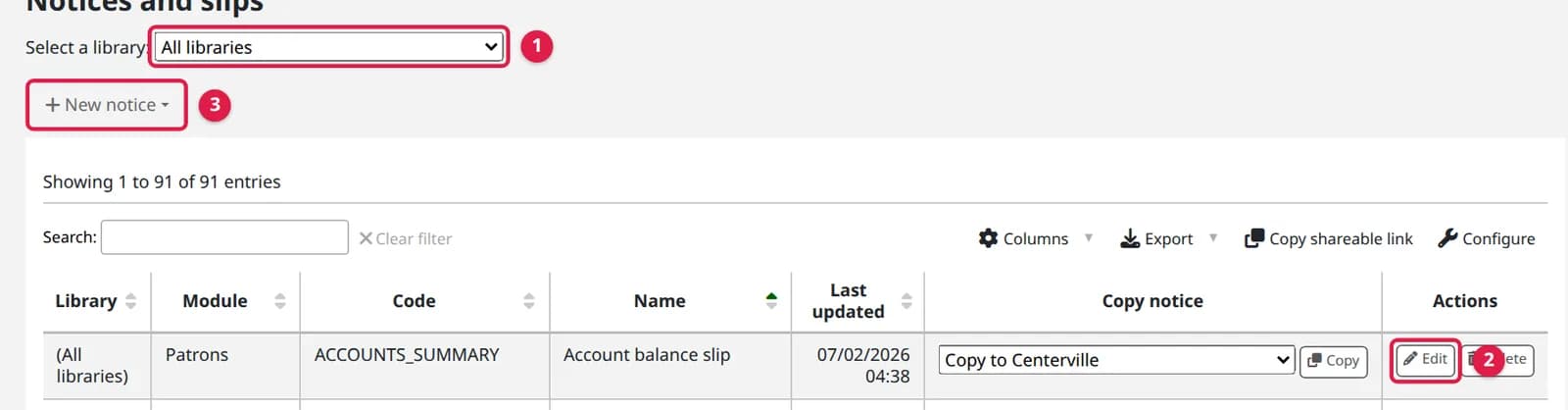
A fresh Koha has about ninety notices. The ones libraries change first:
| Code | What it is |
|---|---|
ODUE | The overdue notice. Koha ships one; for a second and third reminder, create your own notices (New notice → Circulation) and pick each in the First, Second and Third tabs of Overdue notice/status triggers. |
PREDUE, DUE | Advance notice before the due date, and the notice on the due date |
CHECKOUT, CHECKIN | Email receipt after a checkout or a return |
HOLD | Hold waiting for pickup (see the holds workflow) |
ISSUESLIP, ISSUEQSLIP | The slip printed at the desk after a checkout (full and quick) |
HOLD_SLIP, TRANSFERSLIP | The slip printed when a returned item fills a hold, or must travel to another library |
WELCOME | Welcome email to a new patron (sent when AutoEmailNewUser is on) |
Step 2: Change the wording and add variables
Each notice has one panel per way it can be sent: Email, Print, SMS, and on some installs Phone or Feed. A patron who gets email reads the Email panel; a printed notice uses the Print panel. The desk slips ISSUESLIP, ISSUEQSLIP, HOLD_SLIP and TRANSFERSLIP are the exception: Koha prints them from the Email panel (see printing slips on a receipt or A4 printer). Edit the one that is actually used, or both.
- 1Click the Email panel to open it.
- 2Change the Message subject. It becomes the email subject line.
- 3In the Message body, click where the value should go.
- 4In the field list on the left, click a field, for example
borrowers.firstname, then click Insert. Koha writes<<borrowers.firstname>>at the cursor. - 5Tick HTML message only if the body is HTML (links, bold text, a table). Leave it off for plain text.
- 6Click Save, or open the arrow beside it and choose Save and continue editing to stay on the screen.
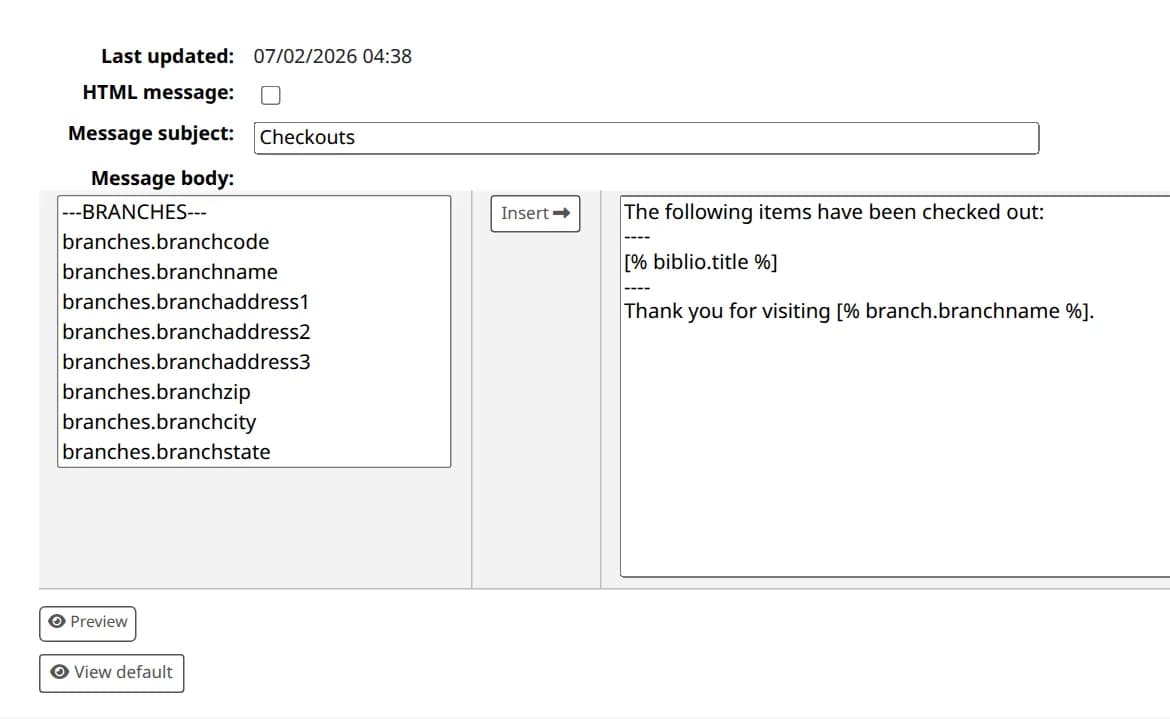
View default shows the wording Koha shipped with, and Copy to template in that window puts it back. Use it when an edit has gone wrong and nobody kept the original.
The variables you can use
A variable is a database column written as <<table.column>>. The field list only offers the tables that notice actually receives, which is why an overdue notice has item fields and a patron notice does not. The ones asked for most:
| Variable | Prints |
|---|---|
<<borrowers.firstname>> <<borrowers.surname>> | The patron’s first name and surname |
<<borrowers.cardnumber>> | The library card number |
<<biblio.title>> <<biblio.author>> | Title and author of the book |
<<items.barcode>> <<items.itemcallnumber>> | Barcode and call number of the copy |
<<issues.date_due>> | Due date and time; add | dateonly inside the brackets (<<issues.date_due | dateonly>>) for the date alone |
<<branches.branchname>> <<branches.branchphone>> | Name and phone of the library |
<<items.content>> | Overdue notices only: the overdue items, one line each (see below) |
<<today>> | Today’s date |
<<OPACBaseURL>> | The address of your public catalog, for a “renew online” link |
<<borrower-attribute:CODE>> | A patron attribute, by its code (for example a student ID) |
Dates print in the format set by the dateformat preference, so changing that preference changes every notice (see Koha date format).
Two ways of writing variables
[% biblio.title %] and names objects in the singular: [% borrower.firstname %], [% item.barcode %], [% branch.branchname %]. The older <<borrowers.firstname>> form still works, and both can sit in the same notice. Template Toolkit also allows conditions and loops ([% IF %], [% FOREACH checkout IN checkouts %]). Copy the style of the notice you are editing.Listing the overdue items
An overdue notice is about several items at once, so it needs a line that repeats. The ODUE Koha ships does it with a Template Toolkit loop; change the middle line to change what each item shows:
[% FOREACH overdue IN overdues %][%- SET item = overdue.item -%]"[% item.biblio.title %]" by [% item.biblio.author %], [% item.itemcallnumber %], Barcode: [% item.barcode %][% END %]Older notices use one of two other forms, and both still work. A line wrapped in <item>…</item> is repeated once per overdue item, with <<biblio.title>>, <<items.barcode>> and the like filled in for each. <<items.content>> prints one ready-made line per item: due date, title, barcode, author and item number. Those columns are set by the overdue job, not the notice: add --itemscontent date_due,title,itemcallnumber (any column of the biblio, items or issues tables) to the overdue_notices.pl line in cron to change them. By default the list holds only the items that reached this trigger; --list-all lists every overdue item the patron has.
Step 3: Give one library its own wording
A notice under All libraries is the default. A copy saved for one library replaces it for that library only, and the others keep the default. This is how a branch gets its own opening hours or phone number in the text.
- 1On the All libraries row of the notice, choose the library in the Copy notice list, for example Copy to Centerville.
- 2Click Copy. Koha opens New notice with Library set to that library and the default text already in it.
- 3Change the text and click Save. The table now shows a second row for the same code, with the library’s name in the Library column.
To go back to the default for that library, delete its row. Do not delete the All libraries row: libraries without their own copy would then have no template for that notice.
Step 4: Test the notice before a patron sees it
Preview exists for three notices only: CHECKOUT, CHECKIN and HOLD_SLIP. On those, fill Data for preview with what it asks for (a barcode, or barcode|borrowernumber, or biblionumber|borrowernumber) and click Preview in the panel. Koha renders the notice with real data and also shows it converted to Template Toolkit. Every other notice has neither the Data for preview box nor the Preview button.

For every other notice, test with a patron record of your own: give a staff test patron your email address, check out an item to them (or place a hold), and read what arrives. For overdue notices, back-date a checkout on the test patron and wait for the overdue job, which a package install runs once a day (see Koha cron jobs).
What Koha can say
| Message | Meaning |
|---|---|
| Do not forget that the item has not been checked out yet. | Normal on a CHECKOUT preview: it renders with the item you named, without checking it out |
| The generated notices are exactly the same! | Your notice and its Template Toolkit conversion print the same text |
| The item or the patron does not exist. | The barcode or borrowernumber in Data for preview is wrong |
| You did not specify data for preview. | Fill Data for preview before clicking Preview |
| You should enable the SMSSendDriver preference to use the SMS templates. | The SMS panel is read-only until an SMS driver is set |
Step 5: Brand every email notice: logo, header, footer, colours and font
Koha has no setting that puts your logo or a footer on every notice. You build it once from three parts, and every notice follows it: the look (colours and font) in one preference, a header file with the library's logo and your institution's name, and a footer file with the library's name, address and social links. Each notice keeps its own message in between, edited as before. The files read the library from the notice itself, so a Midway patron gets Midway's logo and address from the same two files.

- Before you start: shell access to the Koha server with
sudo(the two files live there), the Tools → Notices and slips permission, and your logo and icons at publichttps://addresses. Tools → Upload with Allow public downloads gives one (see changing the Koha OPAC logo); a relative address does not work in an email. - Branding needs an HTML notice. A new Koha ships 81 email notices and 54 of them are plain text, including
CHECKOUT,CHECKIN,ODUE,PREDUE,DUE,HOLD,RENEWAL,AUTO_RENEWALSandMEMBERSHIP_EXPIRY. Converting those is covered below.
The look and the font, once for every notice
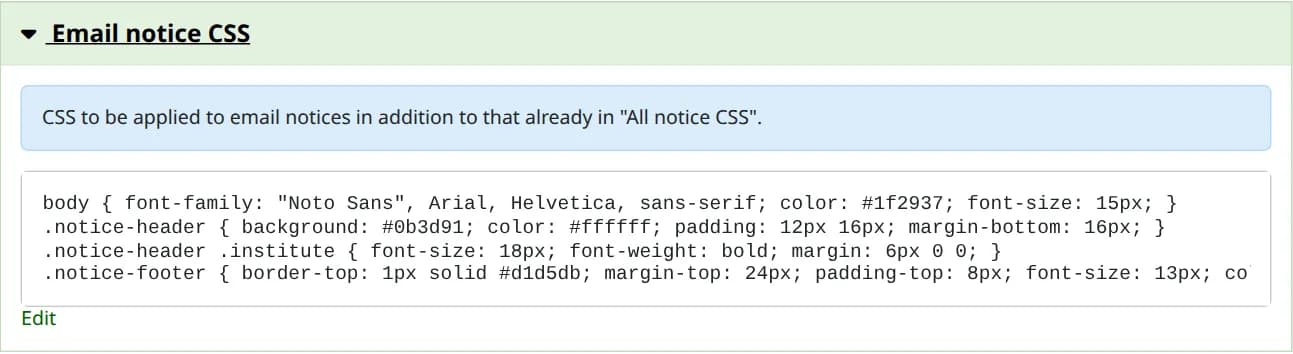
Go to Administration → System preferences, search EmailNoticeCSS, paste this, and save. Koha puts it in the <head> of every HTML email it sends, so the font, the header colour and the footer style are set in one place:
body { font-family: "Noto Sans", Arial, Helvetica, sans-serif; color: #1f2937; font-size: 15px; }.notice-header { background: #0b3d91; color: #ffffff; padding: 12px 16px; margin-bottom: 16px; }.notice-header .institute { font-size: 18px; font-weight: bold; margin: 6px 0 0; }.notice-footer { border-top: 1px solid #d1d5db; margin-top: 24px; padding-top: 8px; font-size: 13px; color: #4b5563; }Response from a live run on Koha 26.05
The font is font-family: name your font first and end with fallbacks (Arial, Helvetica, sans-serif), because a patron's mail app shows the first font their device has. For Urdu or Arabic, put a font such as "Noto Nastaliq Urdu" or "Noto Naskh Arabic" first and add dir="rtl" to the notice's outer element. PrintNoticeCSS does the same for printed notices, and AllNoticeCSS for both. The notice editor shows all three in its Global HTML notice styles panels. The OPAC's own font is a different setting: changing the font in the Koha OPAC.
The header and footer files
Notices are Template Toolkit, and Koha lets a notice pull in a file from the staff theme's includes folder. On a package install that is /usr/share/koha/intranet/htdocs/intranet-tmpl/prog/en/includes. Create the header there (sudo nano notice-header.inc) with your institution's name and one logo per library, chosen by its library code:
[% SWITCH branch.branchcode %][% CASE 'CPL' %][% logo = 'https://www.example.org/logos/centerville.png' %][% CASE 'MPL' %][% logo = 'https://www.example.org/logos/midway.png' %][% CASE %][% logo = 'https://www.example.org/logos/library.png' %][% END %]<div class="notice-header"> <img src="[% logo %]" alt="[% branch.branchname || 'Example University Library' %]" width="180" height="60"> <p class="institute">Example University</p></div>Response from a live run on Koha 26.05
Replace CPL and MPL with your library codes (Administration → Libraries) and the addresses with your logos. One library only? Keep just the last CASE. Then the footer (sudo nano notice-footer.inc): the name and address come from Administration → Libraries, so each library's own details appear without a second file. Put your own social pages and icon addresses in:
[% USE Koha %]<div class="notice-footer"> [% IF branch %] <p><strong>[% branch.branchname %]</strong>[% IF branch.branchaddress1 %], [% branch.branchaddress1 %][% END %][% IF branch.branchcity %], [% branch.branchcity %][% END %]</p> [% IF branch.branchphone %]<p>Phone: [% branch.branchphone %]</p>[% END %] [% ELSE %] <p><strong>Example University Library</strong></p> [% END %] <p> <a href="https://www.facebook.com/examplelibrary"><img src="https://www.example.org/icons/facebook.png" alt="Facebook" width="24" height="24"></a> <a href="https://www.instagram.com/examplelibrary"><img src="https://www.example.org/icons/instagram.png" alt="Instagram" width="24" height="24"></a> <a href="https://www.youtube.com/@examplelibrary"><img src="https://www.example.org/icons/youtube.png" alt="YouTube" width="24" height="24"></a> </p> <p><a href="[% Koha.Preference('OPACBaseURL') %]">Search our catalogue</a></p></div>Response from a live run on Koha 26.05
The [% IF branch %] part matters: a notice that Koha prepares without a library printed Example University Library and the default logo instead of an empty name. Use PNG or JPG icons with a width, height and alt. A change to either file shows in the very next email of every notice: no notice to edit, no restart.
Add the two lines to the notices
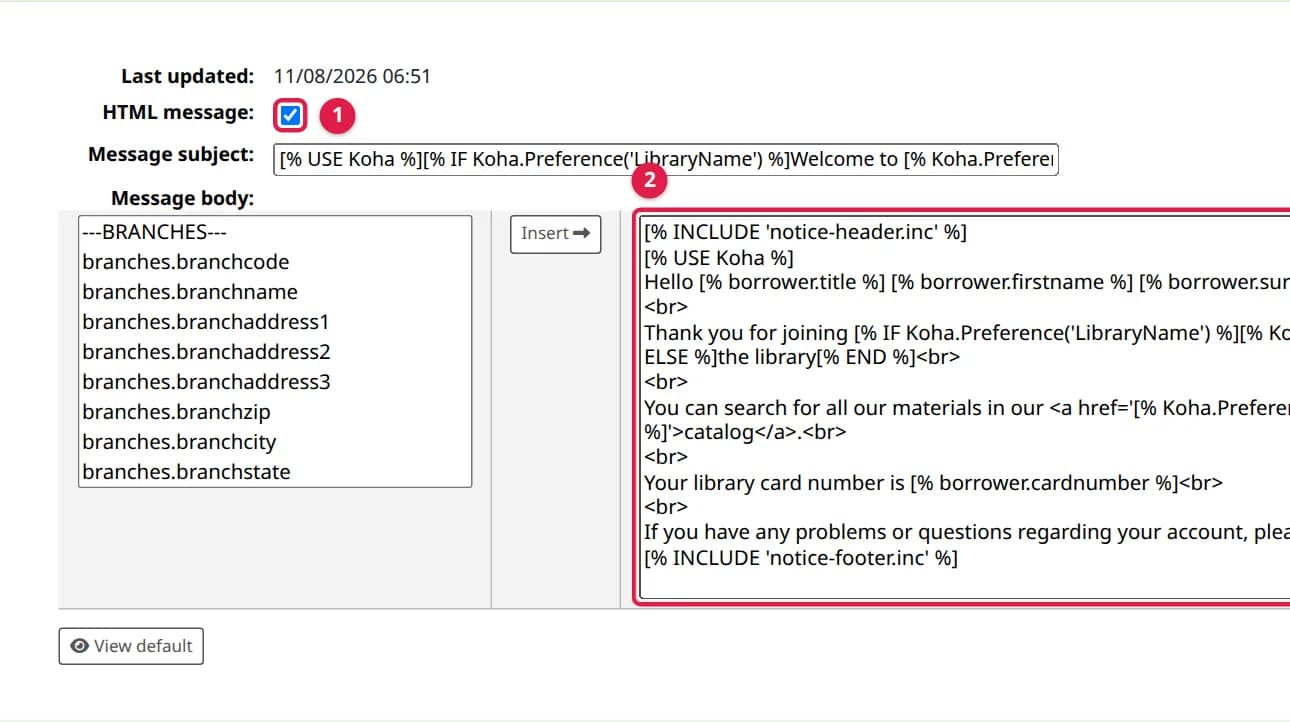
- 1Open Tools → Notices and slips, click Edit on a notice and open its Email panel.
- 2Tick HTML message.
- 3Put
[% INCLUDE 'notice-header.inc' %]as the first line of the Message body and[% INCLUDE 'notice-footer.inc' %]as the last. Leave the notice's own text in between. - 4Click Save, then test it with Preview (step 4) or a real checkout.
To add the lines to every notice that is already HTML in one go, take a copy of the notices first, then run the update in sudo koha-mysql library (your instance name from sudo koha-list). On a new Koha it changes 27 notices and answers ROW_COUNT() 27; run twice, it changes nothing the second time.
CREATE TABLE letter_before_branding AS SELECT * FROM letter;UPDATE letter SET content = CONCAT("[% INCLUDE 'notice-header.inc' %]\n", content, "\n[% INCLUDE 'notice-footer.inc' %]") WHERE message_transport_type = 'email' AND is_html = 1 AND content NOT LIKE '%notice-footer.inc%'; SELECT ROW_COUNT();Response from a live run on Koha 26.05
To undo it, run UPDATE letter l JOIN letter_before_branding b ON b.id = l.id SET l.content = b.content; and then DROP TABLE letter_before_branding;. In our run that put every notice back exactly.
Turn a plain-text notice into a branded one
Ticking HTML message on a plain-text notice such as CHECKOUT makes its lines run together (…checked out: ---- …), because HTML ignores line breaks. Keep them by wrapping the notice's own text in one div, between the two INCLUDE lines:
[% INCLUDE 'notice-header.inc' %]<div style="white-space: pre-line">…the notice's own text, unchanged…</div>[% INCLUDE 'notice-footer.inc' %]Response from a live run on Koha 26.05
Different branding for each library
- Name, address and phone change by themselves: the footer reads them from the library the notice is for.
- A different logo: one
CASEline per library code innotice-header.inc, as above. - Different wording for one library: copy the notice to that library (step 3) and keep the two INCLUDE lines in the copy, so its branding still comes from the same files.
When the branding goes wrong
| What you see | Why, and the fix |
|---|---|
The patron sees <div class="notice-footer"> and other tags as text | HTML message is not ticked on that notice, so Koha sent it as plain text. Tick it |
The notice is not created; the log says ERROR PROCESSING TEMPLATE: file error - notice-footr.inc: not found | The file name in the INCLUDE line is misspelt, or the file is not in the includes folder. Koha stops that notice |
| No colours, just plain text with the logo | Some mail apps drop styles. Check in the apps your patrons use; the content and links still arrive |
| No logo, a broken image | The address is not public or not https://, or the mail app blocks images until the reader allows them |
| The library name is empty | The notice was prepared without a library; the [% IF branch %] fallback in the footer covers it |
Upgrades: the two files belong to no package, so a Koha upgrade leaves them where they are (dpkg -S on notice-footer.inc answers dpkg-query: no path found matching pattern, while Koha's own slip-print.inc next to it belongs to koha-common). Keep a copy of both with your backups, because a reinstall of the server does not bring them back.
Notice settings worth knowing
| Preference | What it does |
|---|---|
| TranslateNotices | When set to Allow, each notice gets a tab per installed language and a patron receives the one in their own language (see installing a language) |
| NoticeBcc | Sends a blind copy of every notice to one address, useful for a week after changing notices |
| EmailFieldPrimary | Which of the patron’s email fields notices go to: primary, secondary, alternate, or the first valid one |
| AllNoticeCSS, EmailNoticeCSS, PrintNoticeCSS | Styling for HTML notices and printed slips, in one place instead of in every notice |
| AutoEmailNewUser | Sends the WELCOME notice to every new patron |
Why a variable comes out blank
Koha replaces each <<table.column>> it recognises and then deletes every variable it did not recognise, without a warning. A typo (borrowers.firstnme), a table the notice does not receive (items.barcode in a patron notice), or a column that is empty for that patron all print as nothing. That is why inserting from the field list matters more than it seems, and why the preview above showed “Dear ,”.
The other surprise is the library copy. Koha looks for a notice belonging to the patron’s or item’s library first and falls back to All libraries only when there is none. An edit made to the default does not reach a library that has its own copy, which is the usual reason “we changed the notice and one branch still sends the old text”.
The notice is right but nobody receives it
| Symptom | Where to look |
|---|---|
| No email notices go out at all | The mail setup, not the template: SMTP server, test email and koha-email-enable |
| Overdue notices never go to some patrons | Overdue notice required is off on their patron category, or no trigger is set for it in Overdue notice/status triggers |
| A patron gets no checkout receipt | Their messaging preferences: Item checkout (or Item checkout and renewal) must be ticked for email on the patron |
| One library still sends the old wording | It has its own copy of the notice; edit or delete that row |
| Variables print as nothing | Misspelled, empty, or not available in this notice: insert from the field list |
Tested on live Koha 26.05.02
Passed all 42 checks · Read the run log
- Koha release
- 26.05.02
- System
- Debian 13 (trixie)
- Setup
- Official Koha test container (koha-common commands). A command that needs systemd or a firewall says where it ran.
- Source read at
- Koha commit d3fc229
Earlier live checks (1)
- , Koha 26.05.02 (commit d3fc229): all 17 claims held. Read the run log
In the Koha manual (26.05)
Verified against the Koha source (16 files)
- C4/Letters.pm (lines 1585-1594, 1682-1720, 1900-1927)
- Koha/Notice/Message.pm (lines 125-160)
- koha-tmpl/intranet-tmpl/prog/en/modules/admin/preferences/tools.pref (lines 30-58)
- koha-tmpl/intranet-tmpl/prog/en/modules/tools/letter.tt (lines 545-610)
- koha-tmpl/intranet-tmpl/prog/en/modules/tools/letter.tt (lines 171-241, 352-365, 397-542, 725-885)
- tools/letter.pl (lines 102-118, 258-309)
- svc/letters/preview (lines 151-237)
- koha-tmpl/intranet-tmpl/prog/en/modules/tools/preview_letter.tt (lines 20-43)
- C4/Letters.pm (lines 134-200, 686-744, 856-947, 1971-2127)
- koha-tmpl/intranet-tmpl/prog/en/modules/admin/preferences/tools.pref (lines 30-58)
- koha-tmpl/intranet-tmpl/prog/en/modules/admin/preferences/i18n_l10n.pref (lines 72-76)
- koha-tmpl/intranet-tmpl/prog/en/modules/admin/preferences/circulation.pref (lines 438-439)
- koha-tmpl/intranet-tmpl/prog/en/modules/admin/preferences/patrons.pref (lines 205-219)
- C4/Overdues.pm (lines 853-905)
- misc/cronjobs/overdue_notices.pl (lines 136-180, 340, 783-792)
- installer/data/mysql/en/mandatory/sample_notices.yml (lines 875-905)
The label under each command says where its response came from; a command with no label was not run live. How we test and which standards we follow.
Want your notices rewritten, branded and tested for every library and language? We set them up on your own Koha so patrons get clear messages.
Want your staff trained on this? We teach it hands on with a live Koha, online or at your library. Ask about staff training
Related
More on configuration & operations
Answers to the questions that usually arrive with this one.
Koha independent branches: what IndependentBranches separates
IndependentBranches keeps staff to their own library's items, loans, holds and patron edits. It does not split the catalogue, and it does not hide other libraries' patrons: a permission does that. Tested both ways.
How to add a library (branch) in Koha
Adding a branch to Koha takes one form, but the code you choose is permanent and a new library needs a calendar, circulation rules and staff before it can lend. Here is the form, every field that matters, and what to set up next.
Koha background jobs stay at "New" and never finish
A staged MARC import or batch modification that sits at "New" means no worker is taking jobs from that queue. Start the worker for both queues and the jobs run.
Koha search says "No results found" for everything
When every search in Koha finds nothing, the records are almost always fine and the search engine is not answering. Here is how to find which part stopped and bring it back, for Zebra and Elasticsearch.