

Circulation & patrons
How to print Koha slips and receipts on a thermal receipt printer or an A4 printer
Koha prints every slip through the web browser, so an 80 mm thermal roll and an A4 page printer are set up in the printer driver and one slip stylesheet, not in a Koha printer setting. Here is each step for both, tested on Koha 26.05.
By Babar Junaid
Published 2026-11-15 · Tested against Koha 26.05
Koha has no printer setting: every slip opens in the browser, which prints it to the computer's default printer. For an A4 or Letter printer that works as installed. For an 80 mm thermal roll, set the roll paper in the printer driver, then give Koha a slip stylesheet with an @page size through the PrintSlipStylesheet preference. CircAutoPrintQuickSlip decides when a slip prints.
| Your printer | What to do |
|---|---|
| A4 or Letter page printer (laser, inkjet) | Make it the default printer (step 1). Skip step 3. Steps 4 and 5 are optional |
| 80 mm thermal roll (Epson TM-T20/T88, Star TSP100/143, most "POS" printers) | Install the maker's driver and choose roll paper (step 1), add the slip stylesheet (step 3), then steps 4 and 5 |
| 58 mm thermal roll | As for 80 mm, with 58mm in the stylesheet and a smaller font-size |
| Both, at different desks | Read Some desks roll, some A4 under step 3 first |
Older guides name SlipCSS: it was renamed in Koha 25.12
SlipCSS preference is now PrintSlipStylesheet, and NoticeCSS is now EmailNoticeStylesheet. Koha renamed both, keeping their values, when it upgraded to 25.12. The new PrintSlipCSS box beside them does nothing on a printed slip in 26.05 (see Where slip CSS works below). The Koha manual for 26.05 still describes the old name, SlipCSS.What Koha prints, and from where
| Slip | Where staff print it, and its notice |
|---|---|
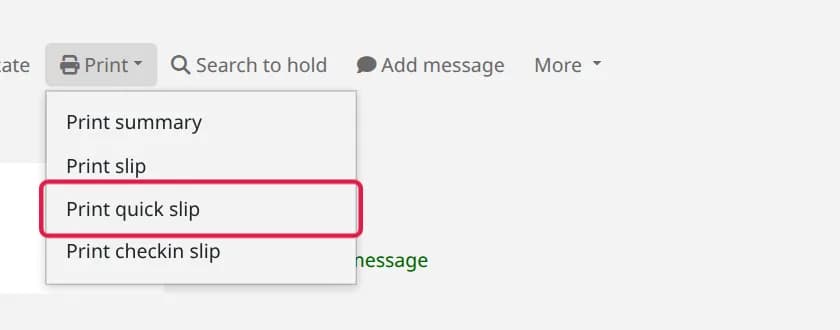
| Checkout slip, quick slip | Patron page or checkout screen → Print → Print slip or Print quick slip, or Enter on an empty barcode (step 4). Notices ISSUESLIP, ISSUEQSLIP |
| Check-in slip | Print → Print checkin slip. Notice CHECKINSLIP |
| Hold slip | Checking in a book that fills a hold → Print slip and confirm. Notice HOLD_SLIP |
| Transfer slip | Checking in a book that belongs elsewhere → Print slip. Notice TRANSFERSLIP |
| Fee and payment receipts | Patron → Accounting → Print on a line. Notices ACCOUNT_DEBIT, ACCOUNT_CREDIT. A different page from the other slips (see Fee and payment receipts below) |
The wording on each slip is a notice in Tools → Notices and slips (how to edit notices and slips). One catch from the test: the checkout and quick slips print from the notice's Email panel, not its Print panel. Koha asks for the email version of ISSUESLIP and ISSUEQSLIP (and of HOLD_SLIP and TRANSFERSLIP), and a Print panel added to ISSUEQSLIP was ignored. Edit the Email panel to change what these slips say.
Before you start
- Koha 25.12 or later for the preference names below (tested on 26.05). On an older Koha,
PrintSlipStylesheetis calledSlipCSS. - Permission to change system preferences, and for step 3
sudoon the Koha server (a package install,koha-common). - The printer connected to the desk computer, with the maker's driver. A thermal printer that prints a test page from the computer will print Koha slips.
- Chrome, Edge or Firefox on the desk computer.
Step 1: Set up the printer on the desk computer
Koha opens the slip and the browser sends it to the printer, so the printer must be ready before Koha is involved. This part depends on the printer and the computer, and was not run in our test (it needs a physical printer); the steps follow the usual driver settings.
On Windows 11
- 1Install the driver from the printer maker's website (Epson and Star both publish Windows drivers for their receipt printers), then print a test page from Windows.
- 2Open Settings → Bluetooth & devices → Printers & scanners and turn off Let Windows manage my default printer.
- 3Click the printer, then Set as default, so the browser offers it first.
- 4For a roll printer: Printing preferences → paper size Roll paper 80 x 297 mm (or 58 mm), and set the cutter to cut at the end of each document if the driver offers it.
On a Linux desk computer (CUPS)
Add the printer with its maker's CUPS driver (Epson and Star publish one), then check that it is there and make it the default. Here the printer is named Receipt80; use the name lpstat -p shows for yours:
$ lpstat -pprinter Receipt80 is idle. enabled since Sat Nov 7 12:13:03 2026$ lpoptions -d Receipt80copies=1 device-uri=socket://192.0.2.50:9100 finishings=3 … printer-info=Receipt80 …$ lpstat -dsystem default destination: Receipt80Response from a run on Ubuntu 24.04 with CUPS 2.4.7
The printer's paper size and cutter are set in the system's printer settings, under the names the maker's driver gives them.
Step 2: Print one slip and look at it
- 1Check out a book to a test patron.
- 2On the patron's checkout screen click Print → Print quick slip. A new window opens and the browser's print dialog appears.
- 3Pick the printer, set Margins to None, turn off Headers and footers, and print. The browser remembers these settings for the next slip.
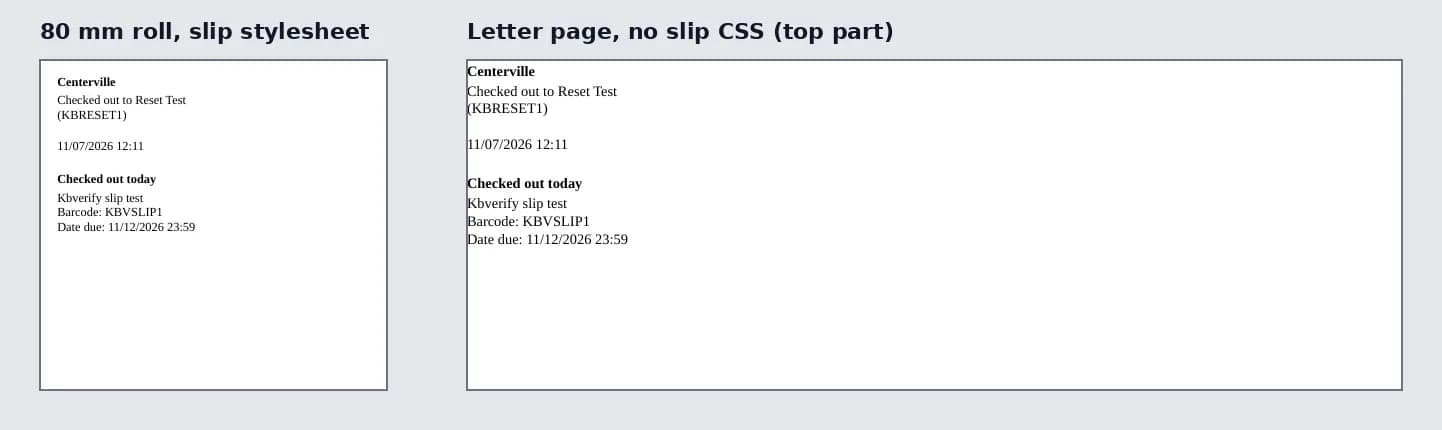
On an A4 printer you are done: the slip prints in the top-left corner of the page, as on the right of the picture above. On a roll printer, if the slip prints very small, or as a long strip with the text squeezed to one side, the browser is still laying it out on A4 or Letter paper. Step 3 fixes that.
Step 3: Give Koha a slip stylesheet for the roll width
The page size goes in a small CSS file that Koha links on every slip through the PrintSlipStylesheet preference. Make a folder for it in the staff site's web root:
$ sudo mkdir -p /usr/share/koha/intranet/htdocs/local-slipsRun on a fresh Ubuntu 24.04 server: it prints nothing when it works
It prints nothing when it works. Create slip-80mm.css in that folder with your editor (for example sudo nano /usr/share/koha/intranet/htdocs/local-slips/slip-80mm.css) and paste:
/* Slips on an 80 mm receipt roll */@page { size: 80mm 200mm; margin: 0;}body { margin: 0; padding: 3mm 4mm; font-size: 12px;}#receipt table { width: 100%;}$ ls /usr/share/koha/intranet/htdocs/local-slipsslip-80mm.cssResponse from a run on a fresh Ubuntu 24.04 server
size: 80mm 200mm is the width of the roll and the length of one page. Use 58mm for a 58 mm roll. Make the length longer than your longest slip: a slip longer than one page breaks onto a second page. Do not use size: 80mm auto, which many web pages suggest: it is not valid for size, so the browser ignores the whole line and prints on A4 or Letter again (measured in the test).
Check that the staff site serves the file (use your staff interface address):
$ curl -sI <staff-address>/local-slips/slip-80mm.css | grep -iE "^HTTP|^Content-Type"HTTP/1.1 200 OKContent-Type: text/cssResponse from a run on a fresh Ubuntu 24.04 server
- 1In the staff interface go to Administration → System preferences and search for
PrintSlipStylesheet. - 2In Include the stylesheet at … on print slips enter
/local-slips/slip-80mm.css. - 3Click Save all Tools preferences.
- 4Print a quick slip again. The print preview is now a narrow page, 80 mm wide.
The preference text asks for a complete URL starting with http://, but the path alone worked in the test and keeps working if the staff address changes. A Koha upgrade leaves the file alone, because no package owns the folder:
$ dpkg -S /usr/share/koha/intranet/htdocs/local-slipsdpkg-query: no path found matching pattern /usr/share/koha/intranet/htdocs/local-slipsResponse from a run on a fresh Ubuntu 24.04 server
Some desks roll, some A4
PrintSlipStylesheet applies to every desk: Koha cannot tell which printer a computer has. If some desks print on rolls and others on A4, leave the size line out of the file (keep margin: 0 and the font size) and set the paper in each printer's driver instead. Without a size, the browser uses the paper of the printer chosen in its print dialog.
Step 4: Choose when Koha prints a slip
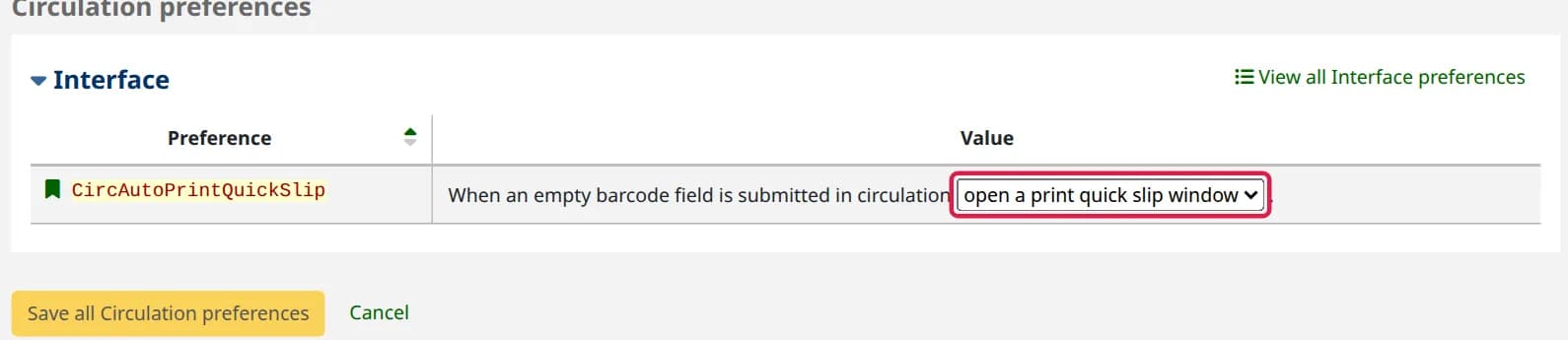
At the checkout screen, staff usually finish with a patron by pressing Enter in the empty barcode box. CircAutoPrintQuickSlip (Administration → System preferences → Circulation) decides what that does. Each value was tried in the test:
| CircAutoPrintQuickSlip | Enter on an empty barcode |
|---|---|
| open a print quick slip window (the default) | Opens the quick slip (ISSUEQSLIP): today's checkouts only |
| open a print slip window | Opens the full slip (ISSUESLIP): every book the patron has |
| clear the screen | Prints nothing and returns to an empty checkout screen for the next patron |
| do nothing | Nothing happens |
Step 5: Print without the print dialog (optional)
Koha cannot skip the browser's print dialog: a web page may ask to print, but only the browser decides whether to ask the user. With the dialog, every slip costs one more click. To print straight to the default printer, set the browser on that desk computer. Both settings send every print from that browser to the default printer, so use them in a browser profile kept for the desk.
| Browser | Setting |
|---|---|
| Chrome, Edge | Start the browser with --kiosk-printing: on Windows, add it to the end of the desktop shortcut's Target, after the closing quote, and start the browser from that shortcut with all other windows closed |
| Firefox | In about:config, set print.always_print_silent to true. Firefox then prints to the printer in print.print_printer, which it sets to the last printer used, so print one slip to the roll printer first |
IntranetSlipPrinterJS (System preferences → Staff interface) is the other half. When it is empty, Koha prints the slip as soon as its window opens and closes the window after printing. Anything you put in it replaces that script: Koha no longer prints unless your code calls window.print() (tested). To print but keep the window open, for example to print a second copy:
window.addEventListener('load', function () { window.print();});The Koha wiki's recipes for this preference use the JSPrintSetup Firefox add-on, which no longer works in current Firefox. Leave the preference empty unless you need different behaviour.
Slips in Urdu, Arabic, Hindi or another script
A slip is a web page, so it uses the fonts the desk computer has. If the patron's name or a title prints as boxes, add the font as in changing the font in Koha: the same @font-face lines work in the slip stylesheet.
Where slip CSS works, and where it does not
Koha 26.05 has several boxes that look as if they style slips. On live Koha, each was given a marker rule and the slip page was read back:
| Where the CSS is | On a printed slip |
|---|---|
PrintSlipStylesheet (a file) | Works. Linked on the checkout, quick and transfer slips in the test; the check-in and hold slips use the same page. The only place an @page size works for all of them |
| The notice's own CSS (Notices and slips → Local HTML notice styles → Style (CSS)) | Works for that one slip, but Koha puts #slip_issueqslip in front of every selector. p { … } works; @page { … } becomes #slip_issueqslip @page { … } and is lost (measured: still Letter) |
PrintSlipCSS | Does nothing in 26.05. The notice editor shows it under Print slip CSS, "CSS to be applied to print slips…", but the slip page never includes it |
AllNoticeCSS, PrintNoticeCSS | Not on slips. They style emails and the print notices that a cron job collects, not desk slips |
Fee and payment receipts
Receipts from Accounting use their own page (members/printinvoice.pl, members/printfeercpt.pl), which does not load PrintSlipStylesheet. There the notice's own CSS is used as written, so put the page size in the notice: Tools → Notices and slips, edit ACCOUNT_DEBIT (fees) or ACCOUNT_CREDIT (payments), and under Local HTML notice styles add @page { size: 80mm 200mm; margin: 0; }. A fee receipt printed 80 mm wide with it in the test.
How to undo it
- Empty
PrintSlipStylesheetand save: slips go back to the printer's paper. - Set
CircAutoPrintQuickSlipback to open a print quick slip window and emptyIntranetSlipPrinterJS. - Remove the file:
sudo rm -r /usr/share/koha/intranet/htdocs/local-slips. - In the browser, remove
--kiosk-printingfrom the shortcut, or setprint.always_print_silentback tofalse.
Why it works this way
Koha runs on a server and the printers are on the desk computers, so the server cannot reach a printer. Each slip is a small web page; the browser lays it out on a page of paper and its print system sends it to the printer. Without a page size in CSS, the browser uses the paper set for the printer, which is why an A4 printer needs nothing and a roll printer prints a slip laid out for A4 until either the driver or @page says otherwise.
The prefix on notice CSS is there so that, when several slips print in one window, one slip's rules do not restyle the next. It works for ordinary selectors, but @page is not a selector, and a prefix in front of it makes the rule invalid. That is why the page size belongs in PrintSlipStylesheet.
Troubleshooting
| What you see | What to do |
|---|---|
| The slip prints tiny on the roll | The browser is shrinking a Letter or A4 page to 80 mm. Add the stylesheet (step 3), or choose roll paper in the driver |
| The slip prints with a wide blank strip on one side | Set the browser's margins to None, and keep margin: 0 in the stylesheet |
| The stylesheet has no effect | Open <staff-address>/local-slips/slip-80mm.css in the browser: a 404 means the file is not in the staff web root. Check the preference is PrintSlipStylesheet, not PrintSlipCSS |
| Fee receipts are still A4 | They ignore PrintSlipStylesheet. Put the @page line in the ACCOUNT_DEBIT / ACCOUNT_CREDIT notice CSS |
| A change in the slip's Print panel does not show | Checkout, quick, hold and transfer slips print the Email panel. Edit that one |
| A long slip comes out on two pieces | Make the second number in size longer than the slip |
| Enter on an empty barcode does nothing | CircAutoPrintQuickSlip is do nothing or clear the screen |
| No print dialog, and nothing prints | IntranetSlipPrinterJS holds code that never calls window.print(). Empty it |
| The print window opens and closes at once | The browser prints silently (step 5) to a printer that is off or out of paper |
To change what the slips say, see editing notices and slips. The desk itself is in the checkout and check-in workflow.
Tested on live Koha 26.05.02
Passed all 51 checks · Read the run log
- Koha release
- 26.05.02
- System
- Debian 13 (trixie)
- Setup
- Official Koha test container (koha-common commands). A command that needs systemd or a firewall says where it ran.
- Source read at
- Koha commit d3fc229
Earlier live checks (1)
- , Koha 26.05.02 (commit d3fc229): all 48 claims held. Read the run log
In the Koha manual (26.05)
Verified against the Koha source (13 files)
- koha-tmpl/intranet-tmpl/prog/en/includes/slip-print.inc (lines 1-17)
- koha-tmpl/intranet-tmpl/prog/en/modules/circ/printslip.tt (lines 36-46)
- members/printslip.pl (lines 72-133)
- C4/Members.pm (lines 391-497)
- C4/Letters.pm (lines 583-586)
- koha-tmpl/intranet-tmpl/prog/en/modules/circ/circulation.tt (lines 1250-1262)
- koha-tmpl/intranet-tmpl/prog/en/includes/members-toolbar.inc (lines 40-56)
- koha-tmpl/intranet-tmpl/prog/en/modules/admin/preferences/circulation.pref (lines 131-139)
- koha-tmpl/intranet-tmpl/prog/en/modules/admin/preferences/staff_interface.pref (lines 37-42)
- koha-tmpl/intranet-tmpl/prog/en/modules/admin/preferences/tools.pref (lines 30-76)
- koha-tmpl/intranet-tmpl/prog/en/modules/tools/letter.tt (lines 612-628)
- koha-tmpl/intranet-tmpl/prog/en/modules/members/printinvoice.tt (lines 19-20)
- installer/data/mysql/db_revs/251200046.pl (lines 1-40)
The label under each command says where its response came from; a command with no label was not run live. How we test and which standards we follow.
Slips still printing too wide, too small or on the wrong printer? We set up slip printing for Koha desks on your own server and computers.
Want your staff trained on this? We teach it hands on with a live Koha, online or at your library. Ask about staff training
Related
More on circulation & patrons
Answers to the questions that usually arrive with this one.
How holds work in Koha, step by step
A hold goes through five stages: placed, picked from the shelf, confirmed at check-in, waiting for the patron, and filled at checkout. Here is each step and the Koha screen that does it.
Why Koha refuses a checkout, message by message
Every message Koha shows when it will not check an item out, what each one means, and the setting or the patron record you change to fix it.