

Circulation & patrons
How holds work in Koha, step by step
A hold goes through five stages: placed, picked from the shelf, confirmed at check-in, waiting for the patron, and filled at checkout. Here is each step and the Koha screen that does it.
By Babar Junaid
Published 2026-11-17 · Tested against Koha 26.05
A hold in Koha moves through five steps. Staff or the patron place it; Koha lists a copy to pull from the shelf; staff check that copy in and confirm the hold; the book waits on the hold shelf while Koha notifies the patron; and the hold is filled when the patron checks it out. Each step has its own screen, listed below.
| Step | Screen |
|---|---|
| 1. Place the hold | Staff: the record's Place hold button/cgi-bin/koha/reserve/request.plPatron: Place hold in the OPAC |
| 2. Find the copy | Circulation → Holds queue or Holds to pull/cgi-bin/koha/circ/view_holdsqueue.pl/cgi-bin/koha/circ/pendingreserves.pl |
| 3. Confirm it | Circulation → Check in: the Hold found window/cgi-bin/koha/circ/returns.pl |
| 4. Wait for pickup | Circulation → Holds awaiting pickup/cgi-bin/koha/circ/waitingreserves.pl |
| 5. Fill it | Circulation → Check out to the patron/cgi-bin/koha/circ/circulation.pl |
Step 1: Place the hold
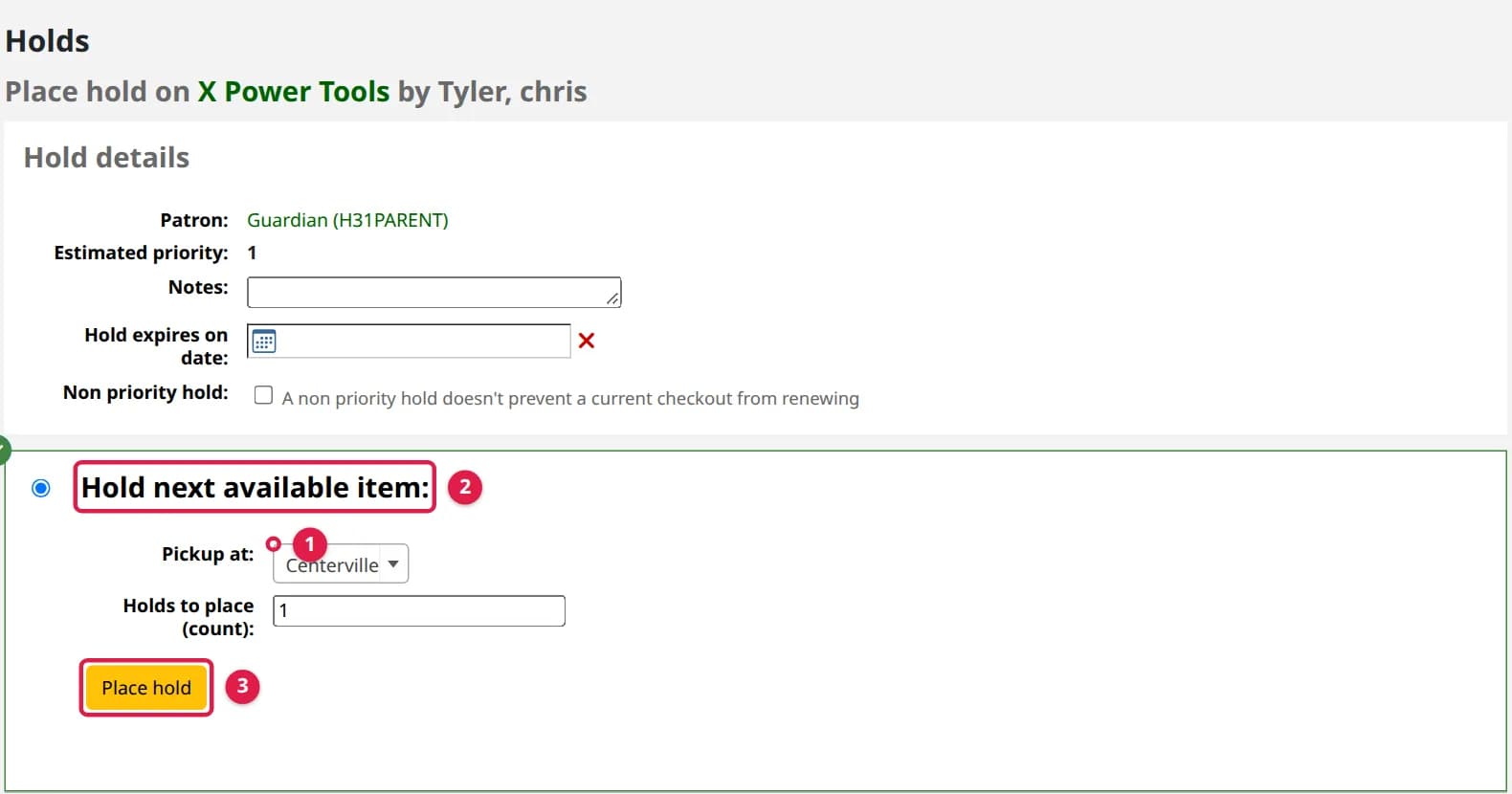
From the staff interface:
- 1Search the catalogue and open the record.
- 2Click Place hold in the toolbar.
- 3Search for the patron by name or card number and select them.
- 4Choose Pickup at: the library where the patron will collect it.
- 5Choose Hold next available item (any copy) or Hold a specific item. Optionally set Hold expires on date.
- 6Click Place hold.
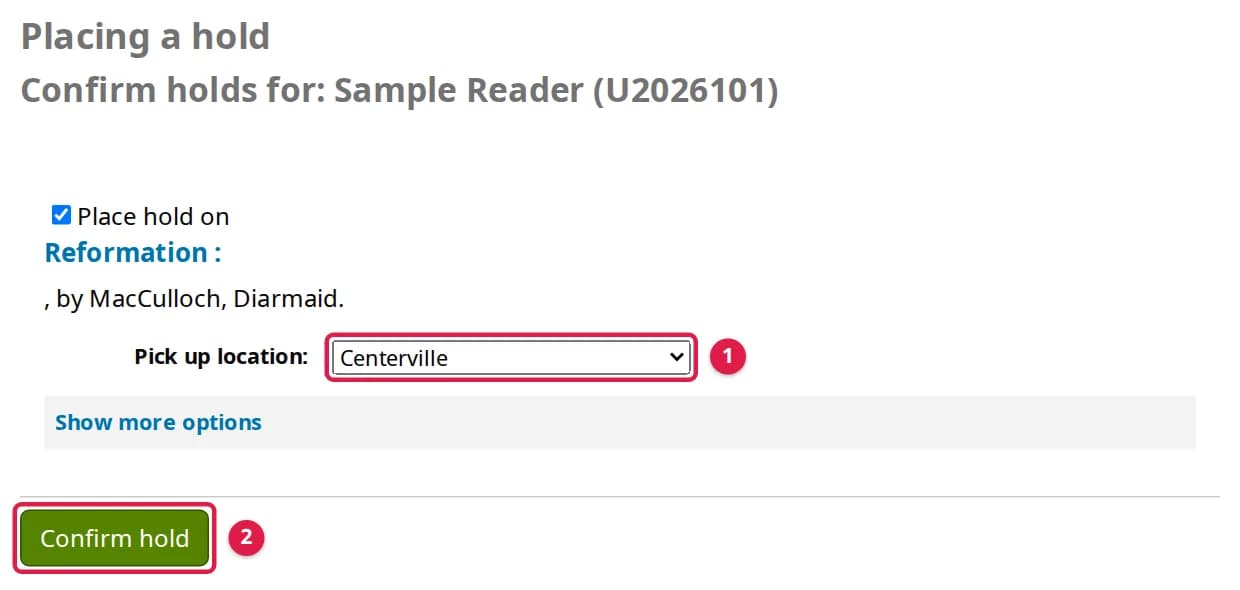
A patron does the same from the OPAC: log in, open the record, click Place hold, pick the pickup library and click Confirm hold. If Koha refuses, the message says why: see why Koha will not let a patron place a hold.
Several patrons on one title
Step 2: Find the copy on the shelf
Koha picks an available copy for each hold and lists it for the library that should pull it:
- Circulation → Holds queue: one row per hold, with the copy Koha chose, its call number and the pickup library. Filter it by your library.
- Circulation → Holds to pull: the same work grouped by title, with every available copy listed, for walking the shelves.
The holds queue is rebuilt every hour by the build_holds_queue.pl cron job, so a new hold can take up to an hour to appear. With the RealTimeHoldsQueue preference enabled, it updates the moment a hold is placed or changed. An empty queue with holds outstanding usually means the cron job is not running: see Koha's cron jobs.
Step 3: Check the copy in and confirm the hold
- 1Take the book from the shelf to Circulation → Check in and scan it.
- 2Koha shows Hold found with the patron's name and the pickup library.
- 3Pickup here: click Confirm hold (or Print slip and confirm for a slip to put in the book) and put it on the hold shelf.
- 4Pickup elsewhere: click Confirm hold and transfer and send the book to that library, where it is checked in again on arrival.
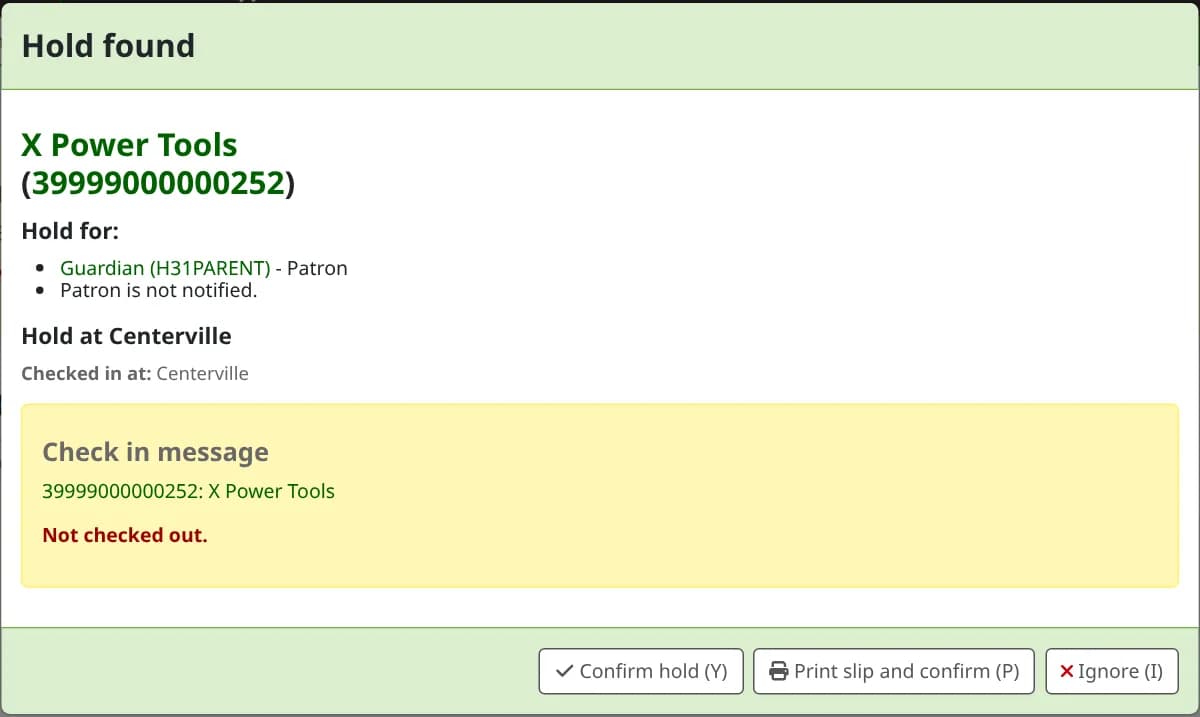
The window also says how the patron will hear about it. Patron notification: Email. means the pickup notice goes out when you confirm. Patron is not notified. means nothing is ticked for Hold filled in the patron's messaging preferences, and then Koha sends nothing at all, not even a printed notice: phone the patron, or tick Hold filled on their record. If Email is ticked but the patron has no email address, Koha queues a printed notice instead, for you to post. Ignore leaves the hold unfilled and the book available; use it only when that copy should not fill the hold. The same window appears when a patron returns a book someone else is waiting for, so holds are also filled from returns, not only from the shelf.
Step 4: Waiting for pickup
Once confirmed, the hold is waiting and Koha sends the patron the HOLD notice (email or SMS, as set in their messaging preferences). Circulation → Holds awaiting pickup lists everything on your hold shelf.
The patron has ReservesMaxPickUpDelay days to collect it. After that it moves to the Holds waiting past their expiration date tab. Staff can cancel those with Cancel selected, or Koha can do it overnight if ExpireReservesMaxPickUpDelay is allowed and the cancel_expired_holds.pl cron job runs. A cancelled waiting hold passes the book to the next patron in the queue, or puts it back on the shelf.
Step 5: Check it out to the patron
When the patron arrives, check the book out to them on Circulation → Check out as usual. The checkout fills the hold and removes it from the patron's holds list. Checking the book out to anyone else first asks for confirmation, because it is waiting for someone.
Settings that shape the flow
| Setting | What it controls |
|---|---|
| Circulation rules: Holds allowed (total), Holds per record, Holds allowed (daily) | How many holds a patron may have |
| Circulation rules: Hold policy | Which patrons may hold which libraries' copies |
| Circulation rules: On shelf holds allowed | Whether a title on the shelf can be held |
ReservesMaxPickUpDelay | Days a waiting hold stays on the shelf |
RealTimeHoldsQueue | Whether the holds queue updates at once or hourly |
Notices and slips: HOLD | The wording of the "ready for pickup" message |
Renewals interact with holds too: a book someone is waiting for cannot normally be renewed. See how renewals work in Koha.
Tested on live Koha 26.05.02
Passed all 9 checks · Read the run log
- Koha release
- 26.05.02
- System
- Debian 13 (trixie)
- Setup
- Official Koha test container (koha-common commands). A command that needs systemd or a firewall says where it ran.
- Source read at
- Koha commit d3fc229
In the Koha manual (26.05)
Verified against the Koha source (7 files)
- koha-tmpl/intranet-tmpl/prog/en/modules/circ/returns.tt (lines 13-25, 892-902)
- circ/returns.pl (lines 595-650)
- C4/Reserves.pm (lines 1940-2030)
- koha-tmpl/intranet-tmpl/prog/en/modules/reserve/request.tt
- koha-tmpl/intranet-tmpl/prog/en/modules/circ/waitingreserves.tt
- debian/koha-common.cron.hourly (lines 19)
- debian/koha-common.cron.daily (lines 29-32)
The label under each command says where its response came from; a command with no label was not run live. How we test and which standards we follow.
Holds stuck, going to the wrong library or never triggering? We set up hold rules and pickup libraries on your own Koha server.
Want your staff trained on this? We teach it hands on with a live Koha, online or at your library. Ask about staff training
Related
More on circulation & patrons
Answers to the questions that usually arrive with this one.
Why Koha refuses a checkout, message by message
Every message Koha shows when it will not check an item out, what each one means, and the setting or the patron record you change to fix it.
How to print Koha slips and receipts on a thermal receipt printer or an A4 printer
Koha prints every slip through the web browser, so an 80 mm thermal roll and an A4 page printer are set up in the printer driver and one slip stylesheet, not in a Koha printer setting. Here is each step for both, tested on Koha 26.05.